Display
A shared surface for documents, diagrams and notes, with touch input directly on screen.
Bring ideas onto a shared screen. For lessons where everyone takes part and meetings that lead to decisions.
Explore use cases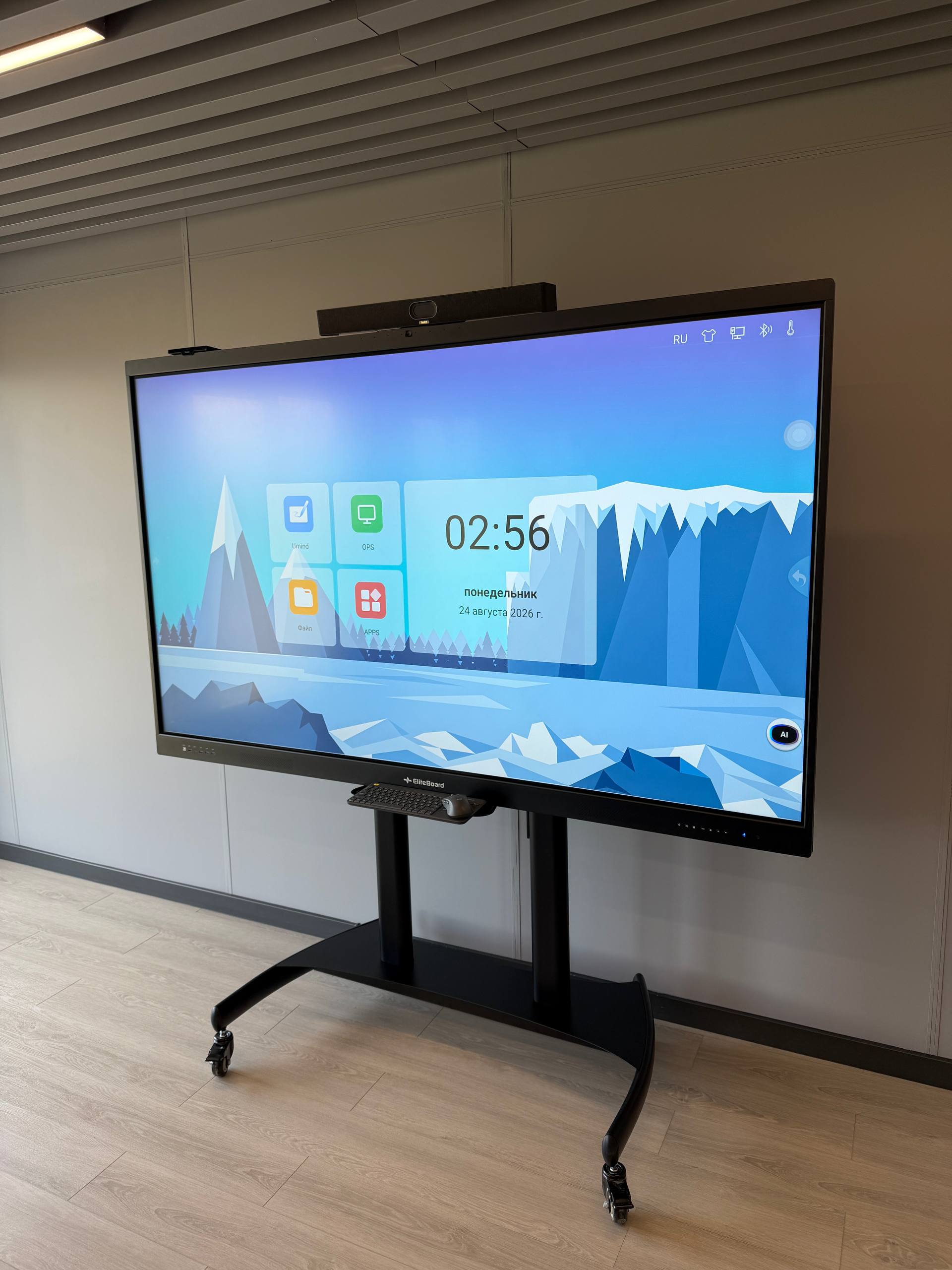
Illustrative assembly based on panel references. Equipment and component positions vary by model.
We go beyond screen size, selecting computing, audio, camera and connections for your tasks.
A shared surface for documents, diagrams and notes, with touch input directly on screen.
Capture speech for remote participants. Coverage is selected for room size and acoustics.
Connects the room to remote participants. Automatic framing and AI features depend on the model.
Play calls, learning videos and presentations. Larger rooms may need additional sound reinforcement.
Houses components, connectors and mounting points. Choose wall mounting or a mobile stand for the room.
Write, highlight and draw as on a conventional board. Magnetic storage keeps pens close at hand.
An optional integrated PC for Windows and corporate applications. Hardware and licences are selected separately.
Connects a compatible panel to wireless networks. Casting depends on apps and network infrastructure.
Powers the Android system, touch input, applications and media. The processor version depends on the panel.
The software layer for whiteboarding, files and apps without an external PC, shown separately from physical parts.
Move from watching to participating in a classroom, meeting room or training centre.
Move from an explanation to a shared exercise in one workspace.
Review documents, bring colleagues into the call and capture decisions as you go.
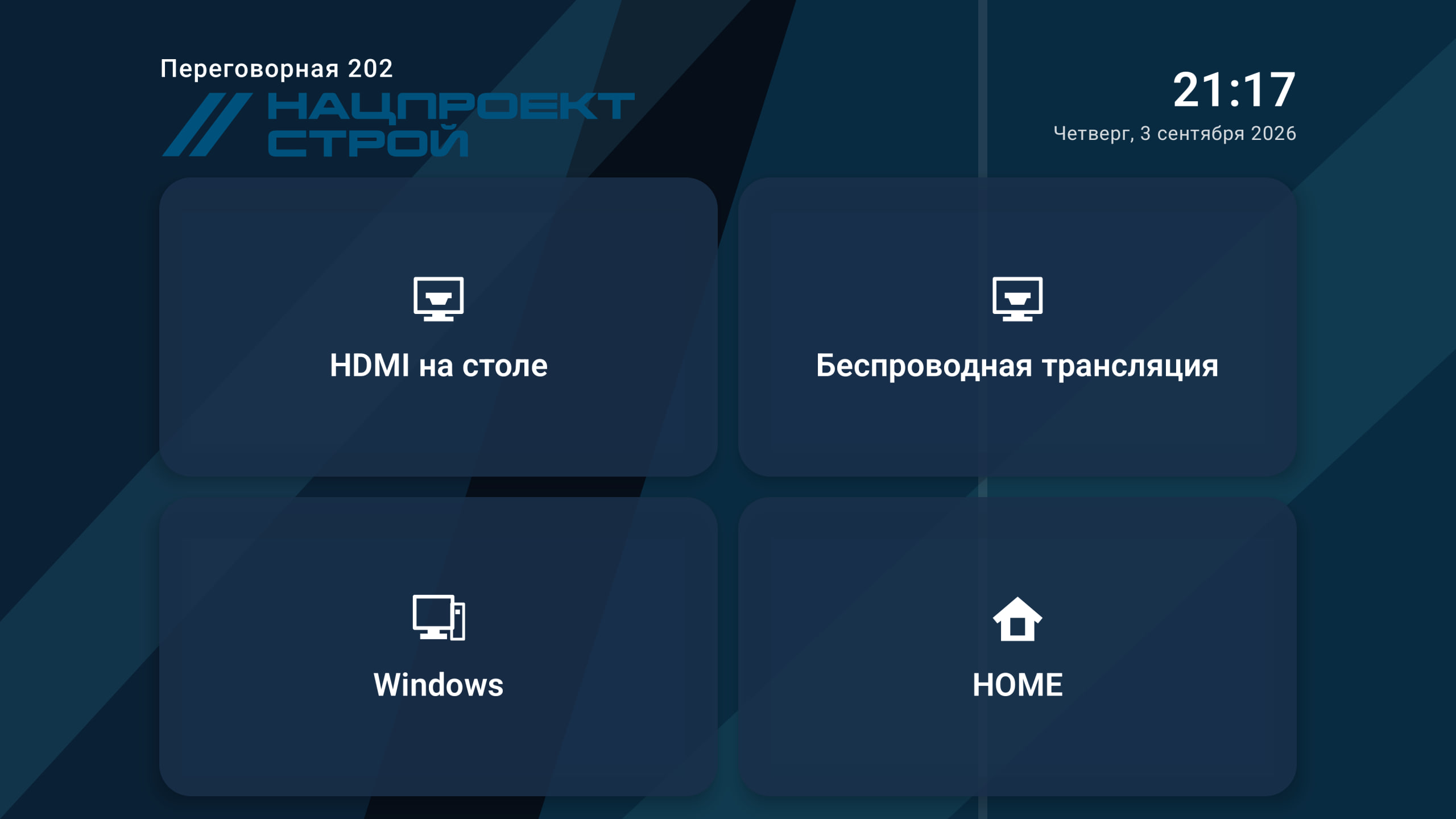
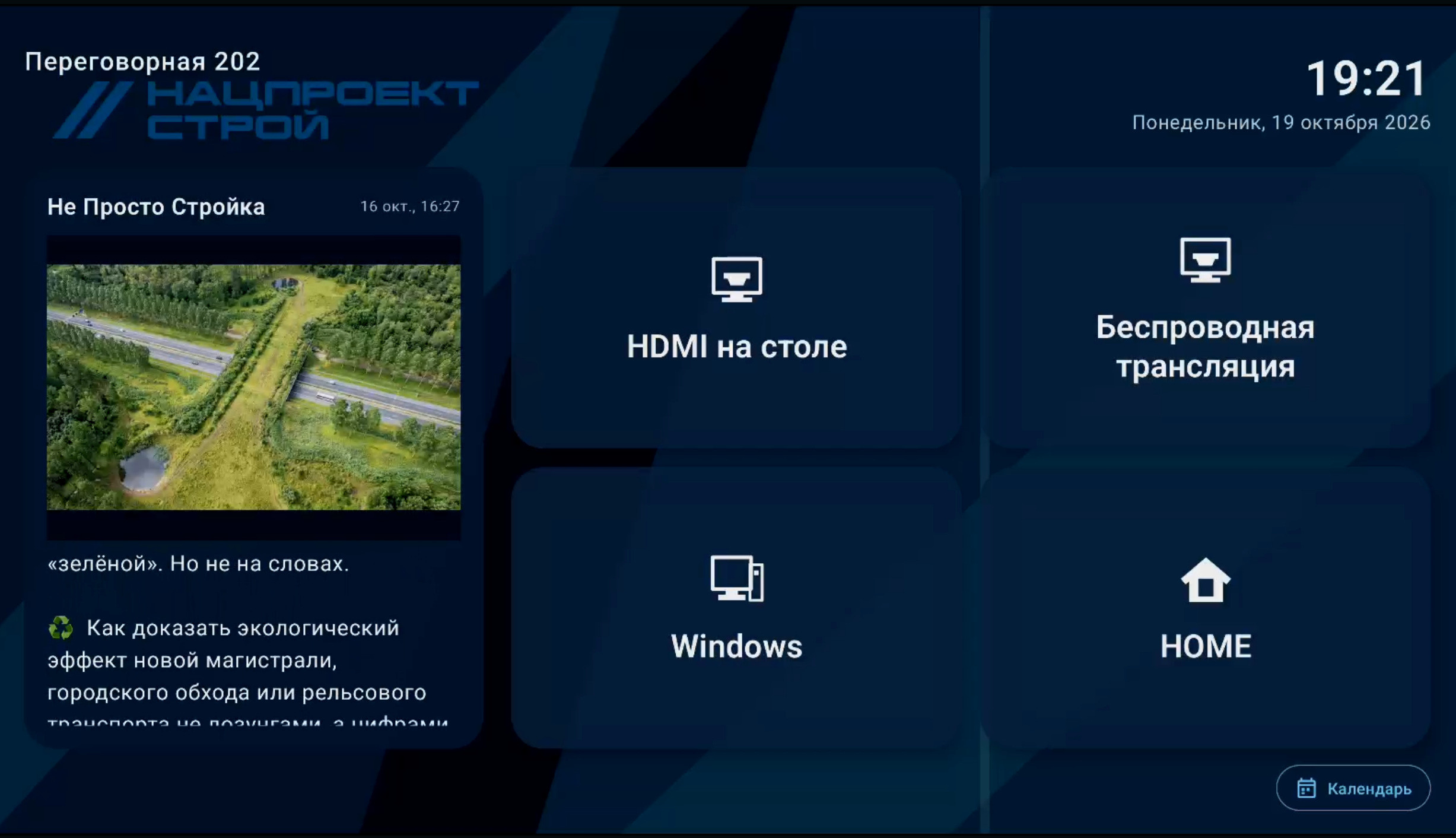
Connect the panel to video conferencing, signal sources and room controls. We configure a clear home screen, operating schedules and access to the apps you need.
Meeting room solutionsFrom the first touch to a saved result. Open a category to explore its features.
Features are based on Hikvision reference materials. Availability, app compatibility and licensing are confirmed for the selected model and software version.
Run up to four Android apps together; move and resize their windows.
Group apps, launch shortcuts and manage app data from the application centre.
A retractable bottom toolbar keeps the main workspace clear.
Swipe right on the home page to see device status.
The reference materials specify this category for D5CRBXX/B only.
Automatically frame the person speaking during a meeting.
Adjust the camera frame to include meeting participants.
Filter sound outside the selected pickup zone, with personal and meeting modes.
Browse local storage and USB drives; organise files by type and folder.
Open and edit Office documents on Android, and work with PDF files.
Select multiple files, share images by QR code and compile images into PDFs.
Browse websites with bookmarks, history, downloads and mobile or desktop views.
Clean up storage and memory, check device status and diagnose faults.
Play audio and video, use picture-in-picture and A–B repeat, and control playback with gestures.
Use the keyboard or handwriting input, and change keyboard size and position.
Lock the screen with a password to restrict access.
View images, sort them by date and share them on the local network using a QR code.
Find FAQs, maintenance instructions and electronic user guides on the panel.
Assign different colours and stroke widths to the pen tips for quick annotations.
Erase a small area, a selection, with a gesture or clear the whole board.
Use a ruler, set square, protractor and compass; rotate and resize the tools.
Insert images, video, documents, shapes, tables, timers, polls and a calculator.
Save to the device or USB drive, or share by email and QR code.
Save as an editable VWB board, image or PDF, then reopen saved work.
Insert a table, adjust rows and columns, and write inside cells.
Build diagrams with rectangles, diamonds, ellipses and arrows.
Switch single- and multi-touch writing, and set pen colour and stroke width.
Choose chalk, pen or pencil styles for handwritten content.
Pan and zoom the canvas, erase with your palm, and undo or redo at least 20 steps.
Use at least 50 board pages, with thumbnails, naming and page deletion.
Call up writing and selection controls close to your work area.
Lock images or writing to protect them while editing other content.
Copy images and written content on the board.
Recolour existing board text using eight available colours.
Choose a background colour or your own background image.
Search the web and insert images or screenshots directly into the board.
Convert Chinese or English handwriting into typed text and sketches into standard shapes.
Place board controls on the left or right to match the way you work.
Scan a QR code to transfer documents and other files to the panel.
Record screen content and sound together as a video.
The listed model supports 48 MP photos and 8 MP video capture.
Take timed photos, control the camera from a phone, and send images to the board or share by QR code.
Capture a selected region or the entire screen; save it or add it to the board.
Update system software and apps online or from a local USB drive.
Temporarily disable touch input.
Create a poll with up to ten options; participants vote by QR code and results can be placed on the board.
The source lists compatibility with Inspark IoT Platform and MasterSCADA; integration is scoped per project.
Set up to five timer groups with independent switch-on and switch-off times.
Choose sound profiles for wall or stand mounting and conference use, with microphone echo cancellation.
Manage one or many displays remotely: schedules, messages, media, APK installation and remote desktop.
The source lists 31 languages, including Russian, English and Chinese.
Adjust brightness manually or use automatic ambient-light sensing.
Switch between internal and external networks with the isolation behaviour described for the model.
Set an inactivity timeout and customise the standby screen.
Switch off the LCD backlight while keeping the device powered.
Monitor device temperature, issue alerts and trigger protective shutdown when needed.
Choose whether the panel starts or stays in standby when power is supplied.
Manage network settings, check wired and Wi-Fi status and restore device settings.
Choose Android, PC or HDMI at startup, and define behaviour when a signal is connected or removed.
Choose applications that should start automatically.
Based on Interactive Panel Comparison v7.2, Software worksheet.
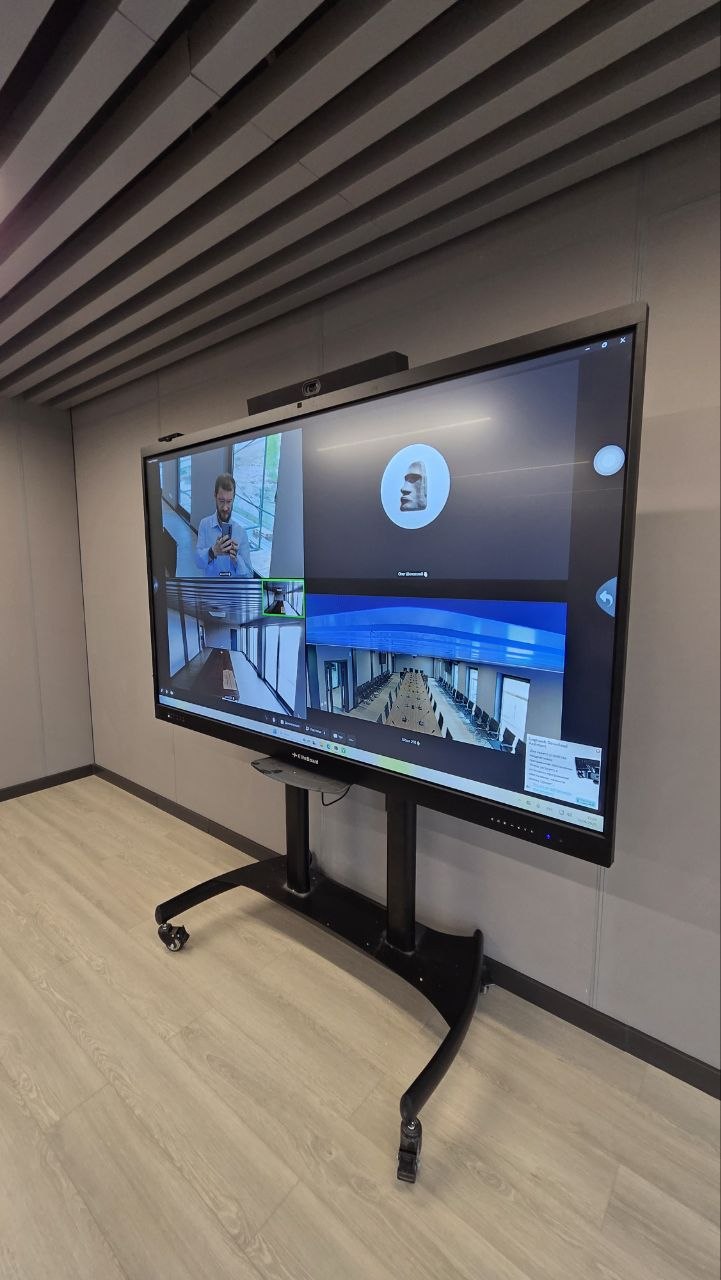
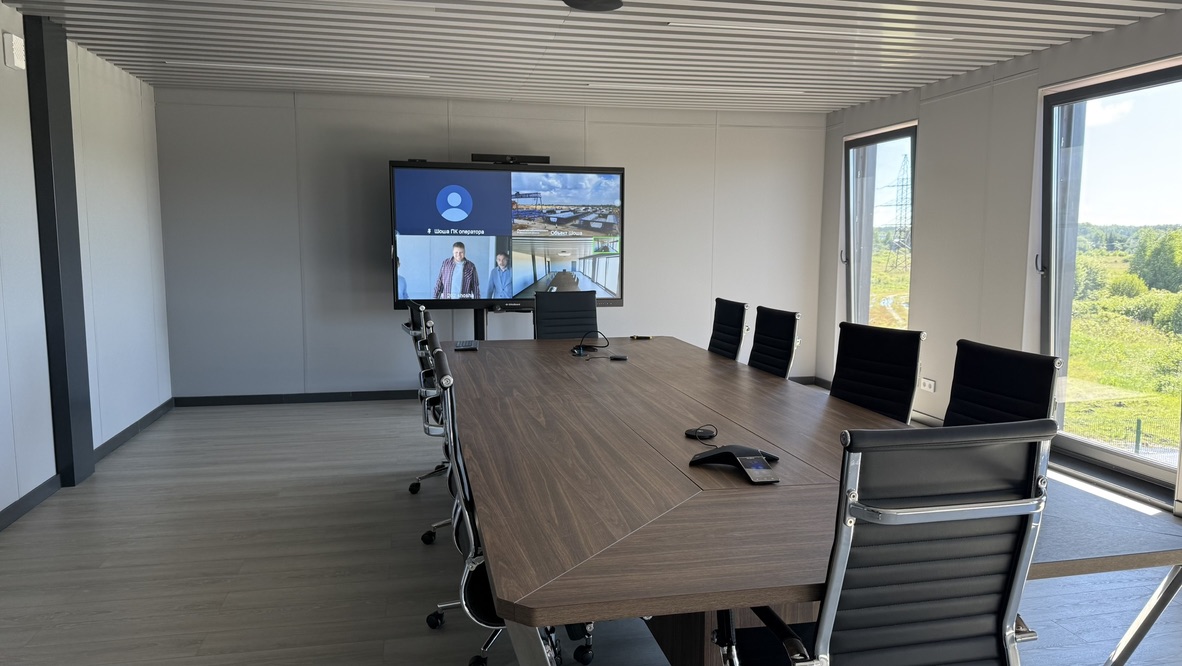
Two meeting rooms for working meetings, video calls and collaborative reviews of project documentation.
We equipped two meeting rooms at the construction headquarters of the high-speed railway with EliteBoard LR-86US7IB5 interactive systems: 86-inch displays with built-in OPS computers.
The system’s versatility, reliability and mobility suit meeting rooms up to 30 m², supporting meetings, remote participation and shared document reviews.
The bright display, protective glass and anti-glare coating make drawings, documents and presentations easy to review. The headquarters occupies a low-rise building on the construction site. Meetings often last several hours, and the display remains bright enough to show engineering details and shared screens during sunny summer days.
Up to 20 simultaneous writing touches in Android and hardware support for up to 40 touches in Windows let several team members annotate, highlight details and discuss changes together on screen.
Two operating systems with preinstalled collaboration software complement each other. Windows on the built-in OPS computer runs familiar applications for designers, technical office engineers and cost estimators. Android provides quick access to a digital whiteboard for diagrams, notes and group discussions.
Multiple HDMI inputs connect employees’ laptops by cable to the shared display. USB-A and USB Type-C ports provide convenient connections for compatible devices and storage containing documents, drawings and presentations.
The interactive displays show information from corporate media to all employees, keeping project participants informed and strengthening team spirit.
The client now has two meeting rooms for effective working meetings and video calls without the need for a costly separate video conferencing system. The built-in camera and microphones, large display and familiar applications work together in one system.
Explore the panel interface, content tools and collaboration features.
English-language demonstration. Features may vary by model. Open video
Tell us about your room, participants and workflows. We will help select screen size, operating system, camera, mounting and software.